I recently encountered an interesting issue with
UISheetPresentationController in iOS 26.2. When using a
.pageSheet presentation style with a detent of
.medium or smaller, iOS automatically applies the
“liquid glass” background effect, completely ignoring any custom
background settings.
Streamlining Finances: Automating Bill Renaming with Apple Shortcuts
The Problem: The “Downloads” Folder Chaos
We all know the struggle. You download a PDF invoice from your
utility provider or internet service, and the file is named
something useless like invoice_839204_export.pdf. These
cryptic filenames make it nearly impossible to find specific bills
later, clutter your file system, and create frustration when you’re
trying to organize your finances.
The goal is simple: automatically rename these files to a standard,
searchable format like YYYY-MM-DD_Company.pdf so you
can easily find, sort, and manage your financial documents.
Common pain points:
- Difficulty finding specific bills when you need them
- Messy file organization that grows over time
- Time wasted manually renaming files
- Inconsistent naming conventions across different providers
The Solution: Apple Shortcuts
I chose Apple Shortcuts for this automation because it’s native to both macOS and iOS, completely free, and syncs seamlessly across all your Apple devices. Unlike complex Python scripts or third-party automation tools, Shortcuts provides a visual, user-friendly interface that makes it accessible to everyone - not just developers.
The best part? You can trigger these automations from the Share Sheet, Quick Actions, or even set up folder-based automation, making it incredibly convenient for daily use.
How the Shortcut Works
Before you download the shortcut, here is the logic behind the workflow. Breaking it down helps if you want to customize it later.
- Input: The shortcut accepts a PDF or an image file (via the Share Sheet or Quick Actions).
- Text Extraction: It extracts the text from the image, and asks ChatGPT or other AI models to extract vendor and date from the document
-
Formatting: It standardizes the date to ISO
format (
YYYY-MM-DD). - Renaming: It combines the variables into a new filename string.
- Saving: It changes the file name in-place with the new one
The Logic Breakdown
The shortcut uses a combination of Apple’s built-in actions and AI-powered text extraction:
- Text Extraction: Uses OCR (Optical Character Recognition) to read text from PDFs and images
- AI Processing: Leverages ChatGPT to intelligently identify vendor names and dates
- Date Standardization: Converts various date formats to consistent ISO format
- Batch Processing: Can handle multiple files at once for efficiency
Pro Tip: The AI component makes this shortcut smarter than traditional regex-based solutions. It can handle different invoice formats and layouts automatically.
Get the Shortcut
You can download the shortcut directly to your library using the link below:
📥 Download: Rename Bills Shortcut
(Note: You might need to allow untrusted shortcuts in settings if you haven’t already, though Apple has changed how this works in recent iOS versions.)
Requirements:
- iOS 16+ or macOS Ventura+
- Apple Shortcuts app installed
- Internet connection for AI processing (or local/offline alternative)
- ChatGPT API key (free tier available)
Privacy Note: If you’re concerned about privacy or prefer offline processing, you can modify this shortcut to use local model or private cloud models instead of ChatGPT. The shortcut can be adapted to use either approach based on your preferences.
How to Set It Up
Once you have installed the shortcut, you need to configure a few variables to match your preferences:
- ChatGPT API Key: Add your ChatGPT API key in the shortcut settings for AI processing
-
Naming Convention: If you prefer
Company_Dateinstead ofDate_Company, you can drag and drop the variables in the “Set Name” action. - Date Format: The shortcut uses ISO format (YYYY-MM-DD) by default, but you can modify the date formatting action if you prefer a different format.
- File Types: By default, it handles PDFs and images (PNG, JPG). You can add more file types in the input action.
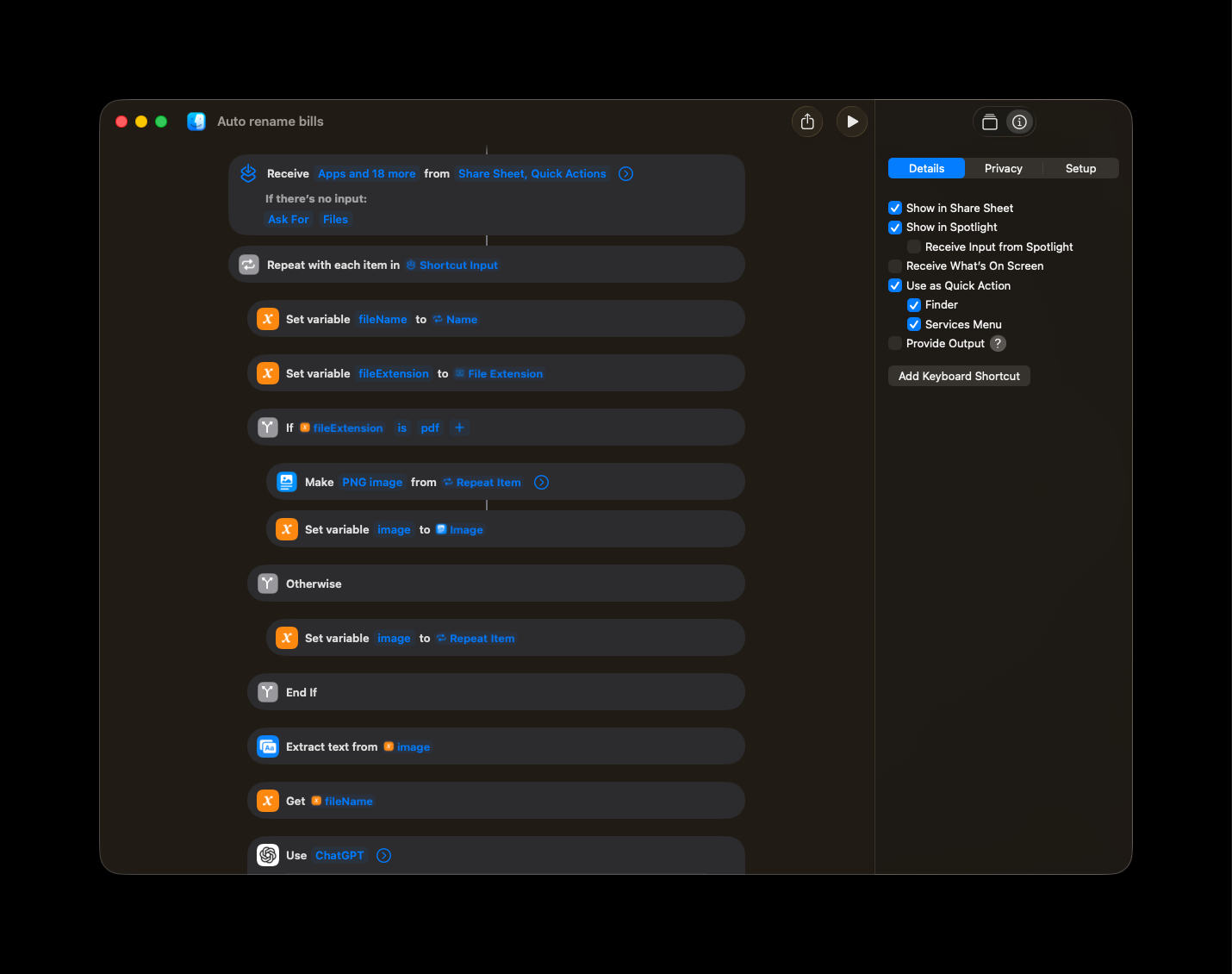
Configuration Tips:
- Test with a few sample files first
- Adjust the AI prompt if you need different extraction behavior
- Consider adding error handling for edge cases
Usage Guide
Here is how to use it in daily life:
On macOS
- Right-click a PDF or image file -> Quick Actions -> Select Auto rename Bill
- For batch processing: Select multiple files -> Right-click -> Quick Actions -> Auto rename Bill
On iOS / iPadOS
- Open the PDF or image -> Tap the Share icon -> Scroll down and tap Auto rename Bill
- For batch processing: Select multiple files in Files app -> Tap Share -> Auto rename Bill
Advanced Usage
- Folder Automation: Set up a folder action in macOS to automatically process new files added to a specific folder
- Siri Integration: Add the shortcut to Siri for voice-activated renaming
- Batch Processing: Process multiple files at once to save time
Pro Tip: Create a dedicated “Bills to Process” folder and set up a folder action to automatically rename files when they’re added.
Conclusion
Automation doesn’t have to be complicated code. With Apple Shortcuts, you can save yourself the 30 seconds it takes to rename a file—which adds up over a lifetime of paying bills.
Time Savings Calculation:
- 30 seconds per bill × 12 bills/month × 12 months/year = 6 minutes/year
- Over 10 years = 1 hour saved
- Over a lifetime = Significant time savings!
This shortcut demonstrates how AI-powered automation can make everyday tasks easier. The combination of OCR, AI text extraction, and Apple’s automation framework creates a powerful tool that’s accessible to everyone.
Tuist build test schemes
Tuist build test schemes
I use tuist to build most of my iOS projects nowadays. And like every good software engineer I test the code that I deliver. I want to ensure that everything works according to what I expect is coming to my app.
Xcode and schemes
XCode is a fun IDE, it is slow, has his own temper when it comes to find references, refactor or even launch app. One of the things that is really strange when you’re using this IDE for the first time is that it does only build the active scheme. So, if your project has, let’s say, 10 schemes, and you refactor a method to add an argument. You won’t notice you have a build error until your build all schemes…
Build errors
I tend to have a lot of build errors during refactoring, but this is globally ok, I use them to pave the way to my final implementation. One of the thing that bothers me is that I don’t always catch all errors, and I need the CI to bail out because of a missing argument / protocol conformance method… This is not a cool thing in my daily process, I am interrupted to fix a build error that should never happen.
Build tests target automatically
As I am a tuist user, I want to be able to build all my tests target easily to prevent pushing something that does not even build (even before I can say that my tests are passing).
Command line-fu
At first I tried a basic thing, hoping that it would work (spoiler alert, it does not):
tuist build '*Tests'
Scripting to the rescue
It seems that it is not supported out of the box by tuist, running schemes by using a wildcard operator to filter them. However, it is rather easy to do using basic bash scripting, so here is my basic solution
set -e
SCHEMES=$(xcodebuild -workspace MyProject.xcworkspace -list | grep Tests | awk '{print $1}')

echo "$SCHEMES" | while IFS= read -r s; do
   echo "Building $s"
   tuist build $s
done
I save this file under buildTests.sh, run a
chmod +x buildTests.sh and then I can build my tests
targets, in sequence, exiting on first failure. This is perfect for
my use case, whenever I refactor too much, or I want to check that
tests are still building, I can run this.
Downside
Script execution is rather slow, as there is not any parallelism involved, everything is building from scratch. It might be nice to run everything in parallel, but so far so good, it is ok for my use case !
Swift module registration
Swift module registration
Let’s modularize our Swift code!
I am using tuist for a while now in my projects. This tool was initially bring into the project’s scope to ease day to day developer operations : no more fiddling with conflicts in xcodeproject files !
Tuist ?
What is tuist by the way ?
Have you ever booted an iOS project, from a few years things have evolved a bit.
Before 2020 I’d say we were doomed to using xcworkspace for defining complex projects.
Cocoapod and Carthage were the cool kids on the block, allowing to download libraries and use them in our beautiful apps.
After 2020, and still now, Swift development have changed to massively using SPM: the built in dependency management tool baked in the swift toolchain. The process is straightforward and easy to set up, a few clicks in XCode and voila! The other way of using SPM is by using a Package.swift file to describe what you want to achieve.
The swift file works very well but lacks from a lot of advanced features available in XCode projects. Or if it is possible, it is not convenient to do.
This is where tuist fills the gap, like Gradle in the Java ecosystem did a few years ago. We can finally use Swift to describe our Swift projects. This means no more copasting things over and over and the dreaded xcodeproj is no more : you’ll only ever have to merge swift files !
Code modularity appears !
It also came in handy for bringing modularity into our codebase. We managed to split dependencies and make modules per feature or functional scope.
This comes at a cost, having to register our different modules to our main app. When I’m talking about registering, I’m considering handling dependencies, routing and navigation. This can represent a lot of modules, a lot of useless lines in our codebase.
To be clearer, our main app contains authentication logic as well as basic http interactions, our modules are dumb as they depend on this external provider to be able to issue any http call.
First implementation
Every of our module was being added to our ResourceLoader class that would call the necessary initializers to set things in motion like the following
func register(){
  LoggingModule.register()
  …
}
With our ResourceLoader implementing a protocol exposing everything that was useful for our submodules, protocol which was made available through a simple used-everywhere dependency.
Auto-registration for the win !
We can do module autoregistration by scanning embedded frameworks.
As we can do with IoC, the idea is to let every module declare
itself to the main consumer. No more long
register method in our application launch, and new
modules are automatically discovered at launch time !
Let’s illustrate this with some code, we declare a protocol that will allow consumer to call registration for our module.
public protocol ModuleRegistration {
    func register()
}
This is our base building block for registration, every module
implements ModuleRegistration to contribute to the main
app.
In every module project, we then set a class that will be
responsible for registration. It will implement this specific
protocol and be populated by its full name into
Info.plist.
@objc
public class MyFrameworkRegistration: NSObject, ModuleRegistration {
    public func register() {
      // inject into the global context our dependencies
      // for instance we can do
      // Container.register(MyLogging.self, MyLoggingImpl.self)
    }
}
Please notice important things in this class. It needs to be
annotated @objc and inherit from
NSObject to be discoverable later on.
The magic being this is that we will declare this class to be our
NSPrincipalClass in the Info.plist of our
framework.
To do so, we add the final touch by enriching the
Info.plist of our module using Tuist project’s
description :
.target(
        name: "MyFramework",
        destinations: .iOS,
        product: .framework,
        bundleId: "org.9h41.ios.modules",
        deploymentTargets: .iOS("16.0"),
        infoPlist: .extendingDefault(with: [
             "NSPrincipalClass": "MyFramework.MyFrameworkRegistration",
        ]),
        sources: .paths(["MyFramework/Sources/**"])
)
Main app implementation
Then in our main app, we scan for NSPrincipalClass in
all of our included bundles , one just need to call the
Modules.autoregister() method in application startup.
public enum Modules {
  public static func autoregister() {
          Bundle.allFrameworks.compactMap(\.principalClass)
              .forEach { clazz in
                  autoregister(clazz: clazz)
              }
  }
  static func autoregister(clazz: AnyClass) {
        let instance = clazz.alloc()
        if let module = instance as? ModuleRegistration {
            module.logger.debug("Doing registration for \(clazz)")
            module.register()
        }
    }
}
Our main app will then scan all included bundles, look for
NSPrincipalClass, test if it matches the protocol
requirement and then calls the registration function.
The declared dependencies in our frameworks are now properly registered inside our app context, dependency injection system or anything you can imagine.
Swift macro : @VisibleForTesting
As an ancient Java developer, I’ve learned to use a set of annotations to bring meta programming in my projects.
Meta programming can be considered as an orthogonal thing to your code, you can inject code to log things, to wrap execution in a transaction or simply provide some context to your fellow developer.
One of my favorite context providing annotation at this time was
brought by Google-Annotations package :
@VisibleForTesting
Its goal is rather simple: provide the context that the visibility of the variable / method is not as restricted as it should be, but this is for the sake of testing.
When going back to my loved XCode (just kidding), I miss these kind of useful information.
Of course you can add a comment, that maybe someone will read if he begins to wonder why the visibility is too important.
// this method should be private but we want to access it from unit test code
func doStuff() { }
You can also play with the deprecation annotation to trigger a warning (one more to add and parse with your eyes…)
@available(*, deprecated, message: "This is visible for testing")
var myState: State
But one thing I was really missing is the ability to really set the proper visibility on my fields while keeping the testability.
Recently, Swift 5.9 had added Macro support. Macros can be seen as ways to generate code based on specific instructions (this brings back old Java-apt memories).
Macro types
There are multiples macro types, whether they can attach to fields, and depending on what they can do:
- Providing accessors
- Generating code alongside the annotated field
- Generating code “in-place”
There are two ways of calling macros :
- Attached ones with
@MacroName - Freeform ones with
#MacroName
I will not enter the details of each type and implementation, you will see more on this later here and can scout on GitHub repositories for inspiration.
Attached macros are written with a leading @ and can generate code
alongside some of our declaration. This allowed me to introduce my
own @VisibleForTesting for swift implementation.
The idea behind this is really simple, generate specific code with public visibility that wraps call to the “non-exposed” real method.
This way we get the best of both worlds, we keep our fields private, we tell our colleagues that this field is available for testing and we are able to test it properly.
What does it look like ?
To use this library, you need to add an SPM dependency on this repository: https://github.com/CedricGatay/SwiftMacroUtils
.package(url: "https://github.com/CedricGatay/SwiftMacroUtils", branch: "main")Then, let’s say you want to give access for testing to the name var of the Dog struct to your testing code, you simply need to do the following
struct Dog {
    @VisibleForTesting
    private var name: String?
}
Under the hood, the macro will generate a public accessor that you will be able to use in your tests
public var __test_name: String? {
    get {
        self.name
    }
    set {
        self.name = newValue
    }
}
The same goes for let, func, and
init . The only specific thing to keep in mind that if
you annotate a class initializer, you need to mark it
as required, otherwise the build will fail (but a nice
comment will tell you why).