Streamlining Finances: Automating Bill Renaming with Apple Shortcuts
The Problem: The “Downloads” Folder Chaos
We all know the struggle. You download a PDF invoice from your
utility provider or internet service, and the file is named
something useless like invoice_839204_export.pdf. These
cryptic filenames make it nearly impossible to find specific bills
later, clutter your file system, and create frustration when you’re
trying to organize your finances.
The goal is simple: automatically rename these files to a standard,
searchable format like YYYY-MM-DD_Company.pdf so you
can easily find, sort, and manage your financial documents.
Common pain points:
- Difficulty finding specific bills when you need them
- Messy file organization that grows over time
- Time wasted manually renaming files
- Inconsistent naming conventions across different providers
The Solution: Apple Shortcuts
I chose Apple Shortcuts for this automation because it’s native to both macOS and iOS, completely free, and syncs seamlessly across all your Apple devices. Unlike complex Python scripts or third-party automation tools, Shortcuts provides a visual, user-friendly interface that makes it accessible to everyone - not just developers.
The best part? You can trigger these automations from the Share Sheet, Quick Actions, or even set up folder-based automation, making it incredibly convenient for daily use.
How the Shortcut Works
Before you download the shortcut, here is the logic behind the workflow. Breaking it down helps if you want to customize it later.
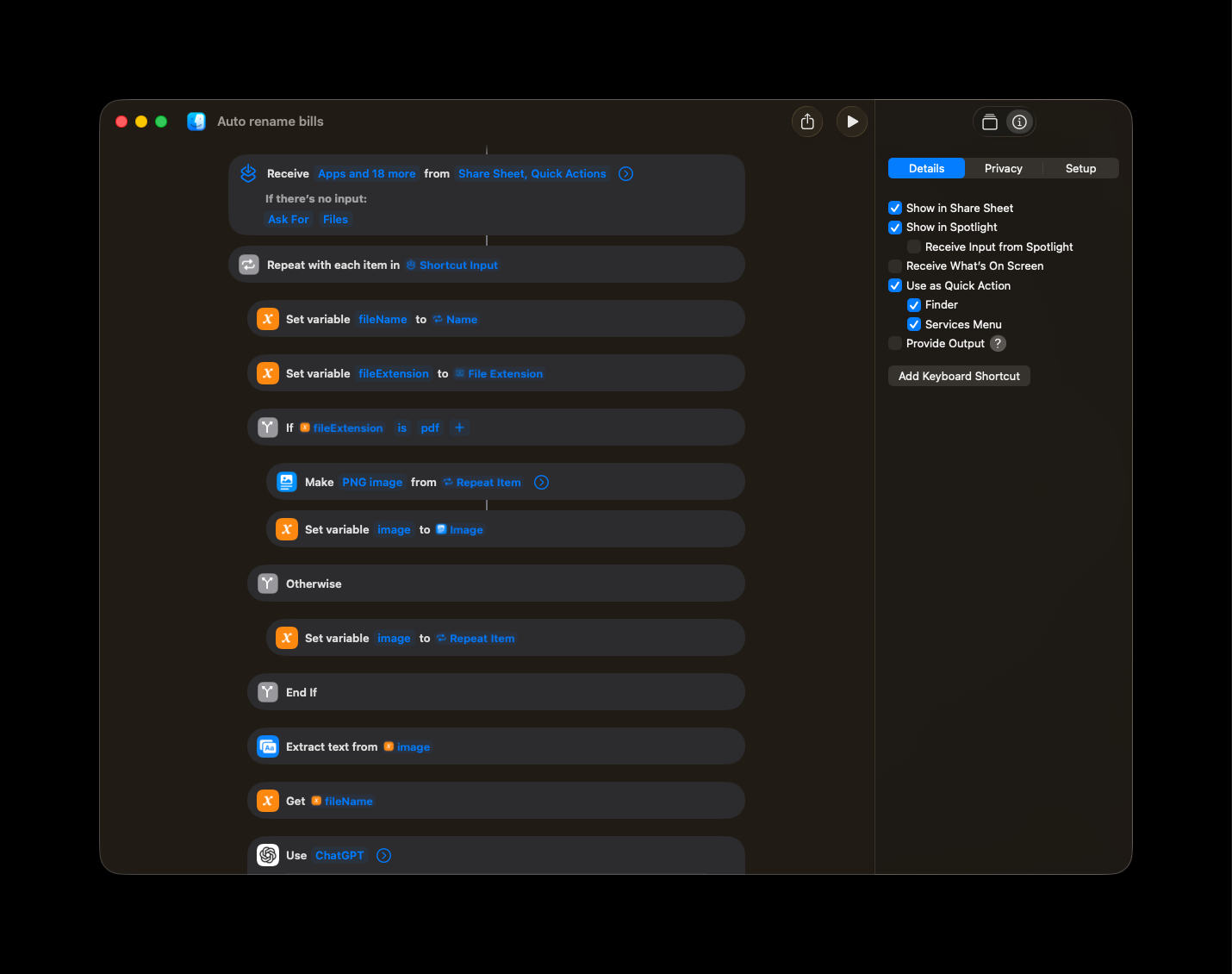
- Input: The shortcut accepts a PDF or an image file (via the Share Sheet or Quick Actions).
- Text Extraction: It extracts the text from the image, and asks ChatGPT or other AI models to extract vendor and date from the document
-
Formatting: It standardizes the date to ISO
format (
YYYY-MM-DD). - Renaming: It combines the variables into a new filename string.
- Saving: It changes the file name in-place with the new one
The Logic Breakdown
The shortcut uses a combination of Apple’s built-in actions and AI-powered text extraction:
- Text Extraction: Uses OCR (Optical Character Recognition) to read text from PDFs and images
- AI Processing: Leverages ChatGPT to intelligently identify vendor names and dates
- Date Standardization: Converts various date formats to consistent ISO format
- Batch Processing: Can handle multiple files at once for efficiency
Pro Tip: The AI component makes this shortcut smarter than traditional regex-based solutions. It can handle different invoice formats and layouts automatically.
Get the Shortcut
You can download the shortcut directly to your library using the link below:
📥 Download: Rename Bills Shortcut
(Note: You might need to allow untrusted shortcuts in settings if you haven’t already, though Apple has changed how this works in recent iOS versions.)
Requirements:
- iOS 16+ or macOS Ventura+
- Apple Shortcuts app installed
- Internet connection for AI processing (or local/offline alternative)
- ChatGPT API key (free tier available)
Privacy Note: If you’re concerned about privacy or prefer offline processing, you can modify this shortcut to use local model or private cloud models instead of ChatGPT. The shortcut can be adapted to use either approach based on your preferences.
How to Set It Up
Once you have installed the shortcut, you need to configure a few variables to match your preferences:
- ChatGPT API Key: Add your ChatGPT API key in the shortcut settings for AI processing
-
Naming Convention: If you prefer
Company_Dateinstead ofDate_Company, you can drag and drop the variables in the “Set Name” action. - Date Format: The shortcut uses ISO format (YYYY-MM-DD) by default, but you can modify the date formatting action if you prefer a different format.
- File Types: By default, it handles PDFs and images (PNG, JPG). You can add more file types in the input action.
Configuration Tips:
- Test with a few sample files first
- Adjust the AI prompt if you need different extraction behavior
- Consider adding error handling for edge cases
Usage Guide
Here is how to use it in daily life:
On macOS
- Right-click a PDF or image file -> Quick Actions -> Select Auto rename Bill
- For batch processing: Select multiple files -> Right-click -> Quick Actions -> Auto rename Bill
On iOS / iPadOS
- Open the PDF or image -> Tap the Share icon -> Scroll down and tap Auto rename Bill
- For batch processing: Select multiple files in Files app -> Tap Share -> Auto rename Bill
Advanced Usage
- Folder Automation: Set up a folder action in macOS to automatically process new files added to a specific folder
- Siri Integration: Add the shortcut to Siri for voice-activated renaming
- Batch Processing: Process multiple files at once to save time
Pro Tip: Create a dedicated “Bills to Process” folder and set up a folder action to automatically rename files when they’re added.
Conclusion
Automation doesn’t have to be complicated code. With Apple Shortcuts, you can save yourself the 30 seconds it takes to rename a file—which adds up over a lifetime of paying bills.
Time Savings Calculation:
- 30 seconds per bill × 12 bills/month × 12 months/year = 6 minutes/year
- Over 10 years = 1 hour saved
- Over a lifetime = Significant time savings!
This shortcut demonstrates how AI-powered automation can make everyday tasks easier. The combination of OCR, AI text extraction, and Apple’s automation framework creates a powerful tool that’s accessible to everyone.